Meta has changed the WhatsApp app for Windows to a web based app. Many users feel the new version is slower and does not work as smoothly as the old one. There is no official way to switch back, but you can still install the old WhatsApp desktop app on Windows 11 and Windows 10.
Restore the Old WhatsApp Desktop App on Windows (Step-by-Step Guide):
To use the old WhatsApp app, you need two things:
The installer file of the last old WhatsApp app and Microsoft Store updates turned off for a few weeks. Turning off updates is important. If not, Windows will quickly replace the old app with the new one.
Steps to Install the Classic WhatsApp Desktop App on Windows
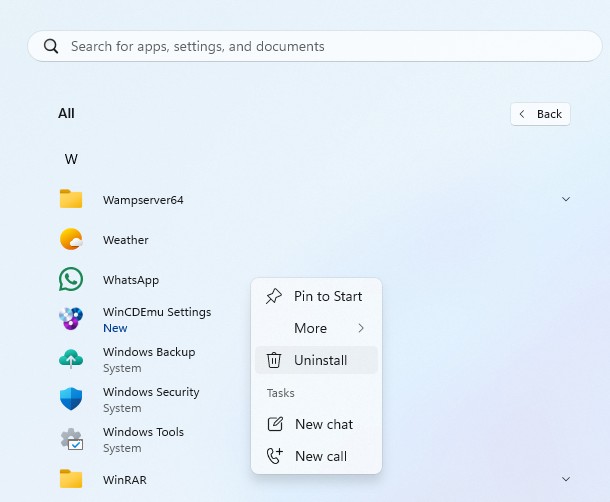
1. If WhatsApp is already installed on your PC, uninstall it first.
2. Open the Microsoft Store. Click your profile icon and go to Settings.

3. Turn off Automatic app updates and select 5 weeks.
4. Download the old WhatsApp installer file. Make sure to check the file signature before installing.
5. Double-click the file and click Install.
6. Open WhatsApp and sign in. You are now using the old WhatsApp app.
Note: After five weeks, Microsoft Store updates will turn on again. When that happens, WhatsApp may update to the new web app. If this happens, repeat the same steps. The old app may not work forever, but it works for now.